Tube Seam (Selection)
Tube Seam (Selection) is the one-shot version of Tube Seam. Select one or more seed edges, run the operator, and Easeam applies the tube seam logic directly from that selection without entering the modal hover preview workflow.
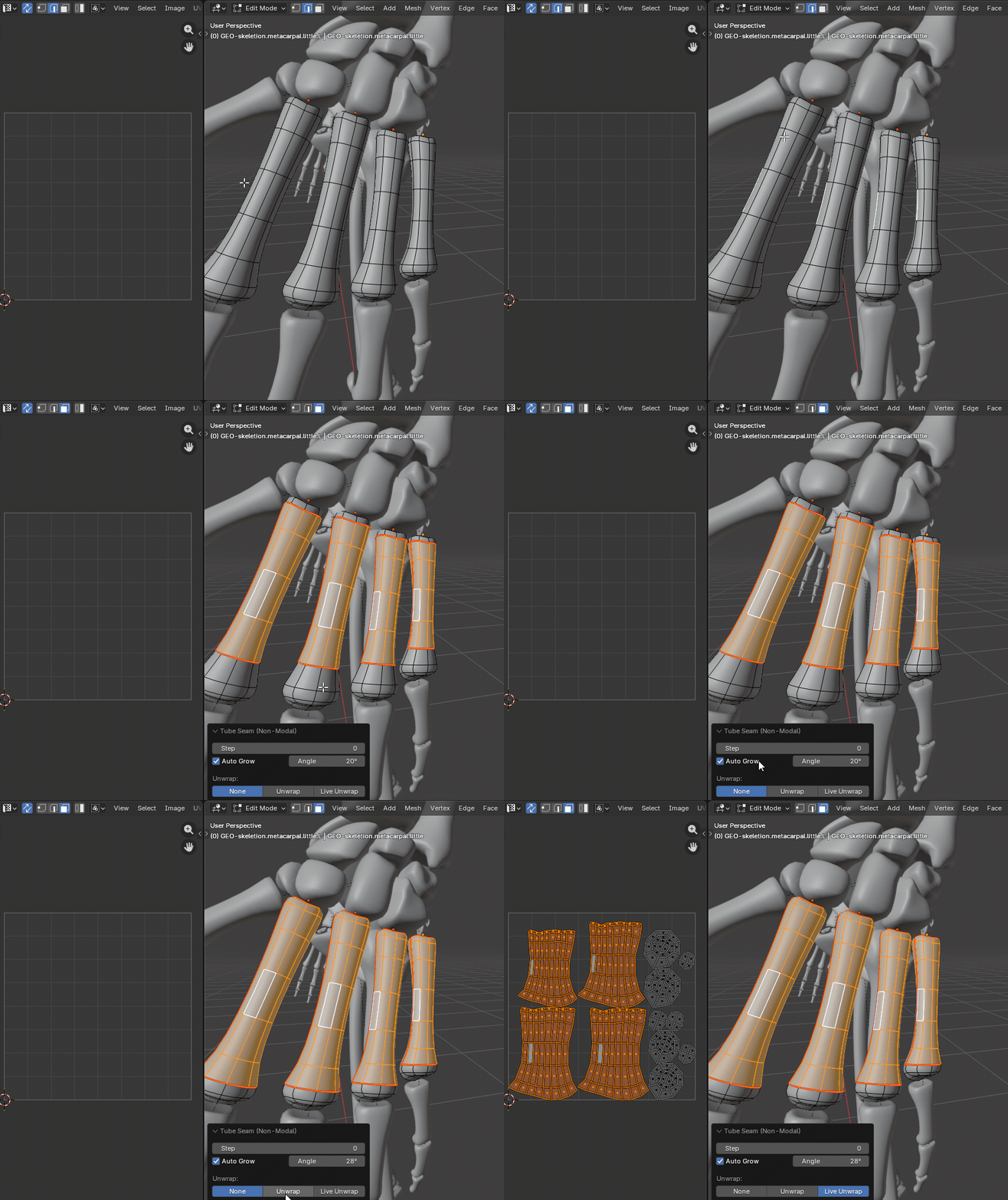
What it does
- Uses the currently selected edges as seed edges.
- Grows the tube cut from each selected edge.
- Selects the matching edge ring and surrounding face strip.
- Marks the strip edges, seed edges, and boundary loop as seams.
- Leaves the affected faces selected after the operation.
- Supports multi-object edit sessions.
- Can use manual Step or Auto Grow based on the bend angle of the tube.
Where to find it
View3D > Sidebar > Easeam > Non-Modal Tools > Tube Seam (Selection)View3D > Mesh Edit Mode > Alt + S > Non-Modal Tools > Tube Seam (Selection)
Settings
Step
Controls how many tube steps are added from each selected seed edge before the ring and boundary are marked. This is the predictable option when you know exactly how far the seam should travel.
Default: 0
Auto Grow
Keeps growing along the tube until the next bend reaches the configured Angle. Use it when the tube has a clear bend or end condition and you want Easeam to stop before the shape changes direction too much.
Default: Off
Angle
Only active when Auto Grow is enabled. Lower values stop earlier on subtle bends. Higher values allow the seam to continue across stronger bends.
Default: 30 deg
Tube Seam (Selection) uses the shared Unwrap mode setting.
Tips
- Start from an edge that belongs to the tube strip you want to cut.
- Use Step for short, controlled cuts and Auto Grow for longer tube sections.
- If Auto Grow stops too early, increase Angle; if it runs too far, lower Angle.
- If the result does not travel as expected, inspect the seed edge and nearby topology for non-quad or branching areas.
- Use Tube Seam when you want hover preview before committing each seam.