Around Flat (Selection)
Around Flat (Selection) is the one-shot version of Mark Around Flat. Select one or more seed faces, run the operator, and Easeam detects the connected flat region, marks a seam around its boundary, and leaves the detected faces selected.
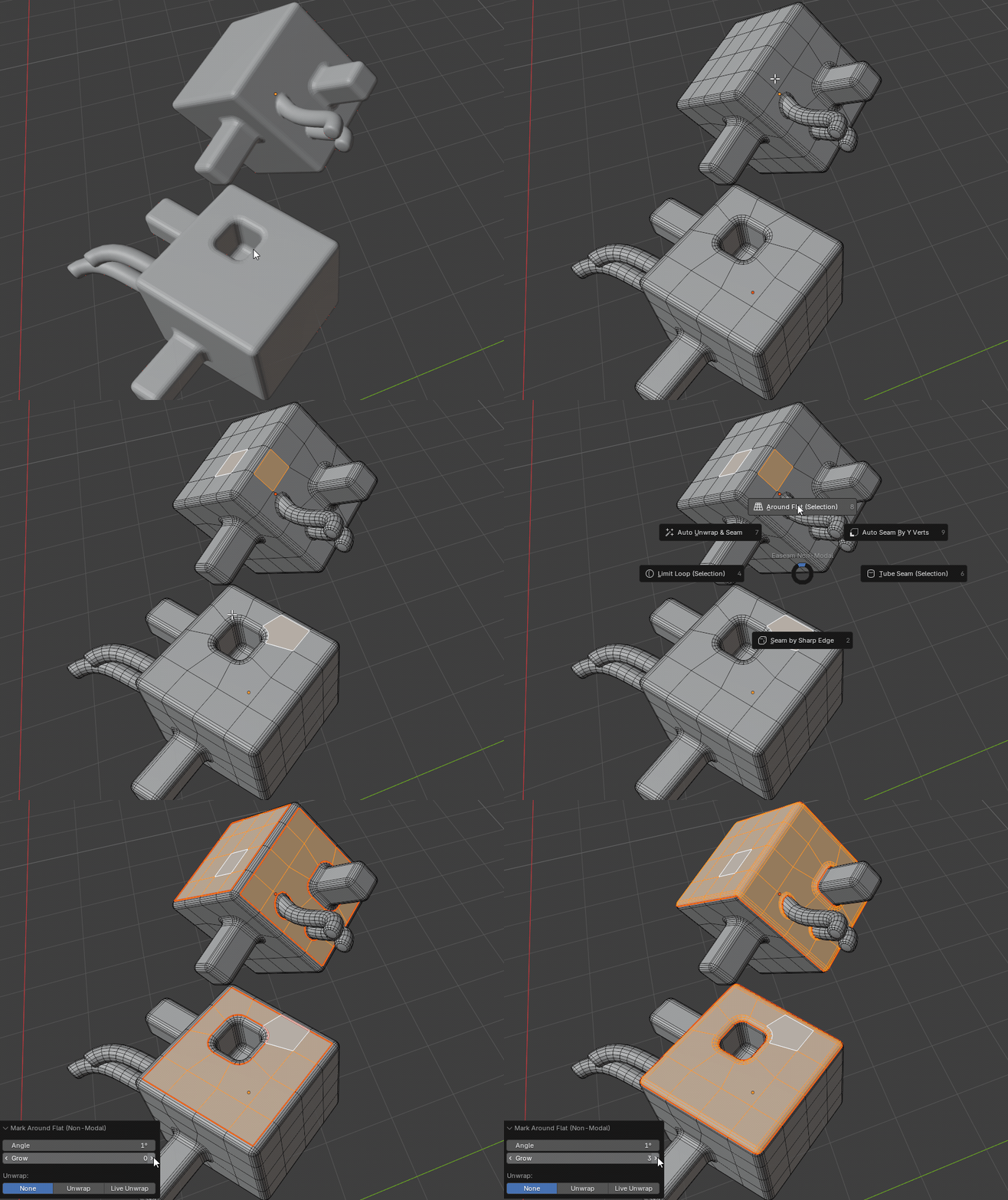
What it does
- Uses the currently selected faces as seed faces.
- Detects adjacent faces that stay within the Angle limit.
- Stops flat detection at existing seam boundaries, so it stays inside the current seam island.
- Optionally grows the detected region outward.
- Marks seam edges around the final region boundary.
- Leaves the final detected faces selected after the operation.
- Supports multi-object edit sessions.
- Can mark only, unwrap the affected faces, or run Live Unwrap.
Where to find it
View3D > Sidebar > Easeam > Non-Modal Tools > Around Flat (Selection)View3D > Mesh Edit Mode > Alt + S > Non-Modal Tools > Around Flat (Selection)
Best use cases
Use it when you already know the face region you want to seed and do not need the hover preview from the modal tool:
- hard-surface panels
- caps and flat details
- inset faces
- nearly planar bevel areas
- regions that should become their own UV island from an existing face selection
Workflow
- Select a mesh object and enter Edit Mode.
- Select one or more seed faces.
- Run
Around Flat (Selection). - Adjust
Angle,Grow, andUnwrapin the operator panel or redo panel. - Confirm the operation.
If no faces are selected, the operator cancels and reports Select at least one face.
Settings
Angle
Controls the maximum face-normal difference that still counts as part of the same flat surface.
Default: 1 deg
Lower values keep the region stricter and are useful for crisp planar panels. Higher values allow the region to continue across softer bends.
Grow
Expands the detected region after the flat selection is found. This behaves like a controlled Select More pass around the detected faces.
Default: 0
Maximum: 32
Grow respects seam boundaries. It expands across non-seam edges and avoids growing through vertices that touch seams.
Unwrap
Controls what Easeam unwraps after marking the boundary seams.
| Mode | Behavior |
|---|---|
None | Only marks seams. |
Unwrap | Marks seams, then unwraps the affected selected faces. |
Live Unwrap | Marks seams, temporarily selects the whole processed mesh for unwrap, then restores the detected face selection. |
How selection is handled
For each edit-mode mesh object, Easeam gathers the faces that were selected before the operator runs. Objects without selected faces are skipped.
The operator first finds the seam island connected to the seed faces. Hidden faces and faces outside that island are blocked. It then grows the flat selection from the seeds using the Angle setting, applies the optional Grow passes, marks the boundary seams, and selects only the final detected faces.
After it finishes, Easeam restores the original active object and mesh selection mode.
Tips
- Mark existing UV island borders first if you want Around Flat (Selection) to stay inside them.
- Start with the default Angle for hard-surface work, then increase it only when the detected region is too small.
- Use Grow when the flat area is correct but the desired seam boundary should sit one or more face rings farther out.
- Use
Unwrapwhen you only want to update the affected region. - Use
Live Unwrapwhen the full mesh should be considered during the unwrap step.
Related modal tool
Use Mark Around Flat when you want hover preview and repeated modal marking before committing each seam.