Tube Seam
Tube Seam is built for cylindrical parts: cables, pipes, handles, sleeves, bolts, and any clean quad-based tube where you need a usable UV cut without hand-walking every loop. Hover an edge, preview the seam cut, then apply it when the strip and boundary look right.
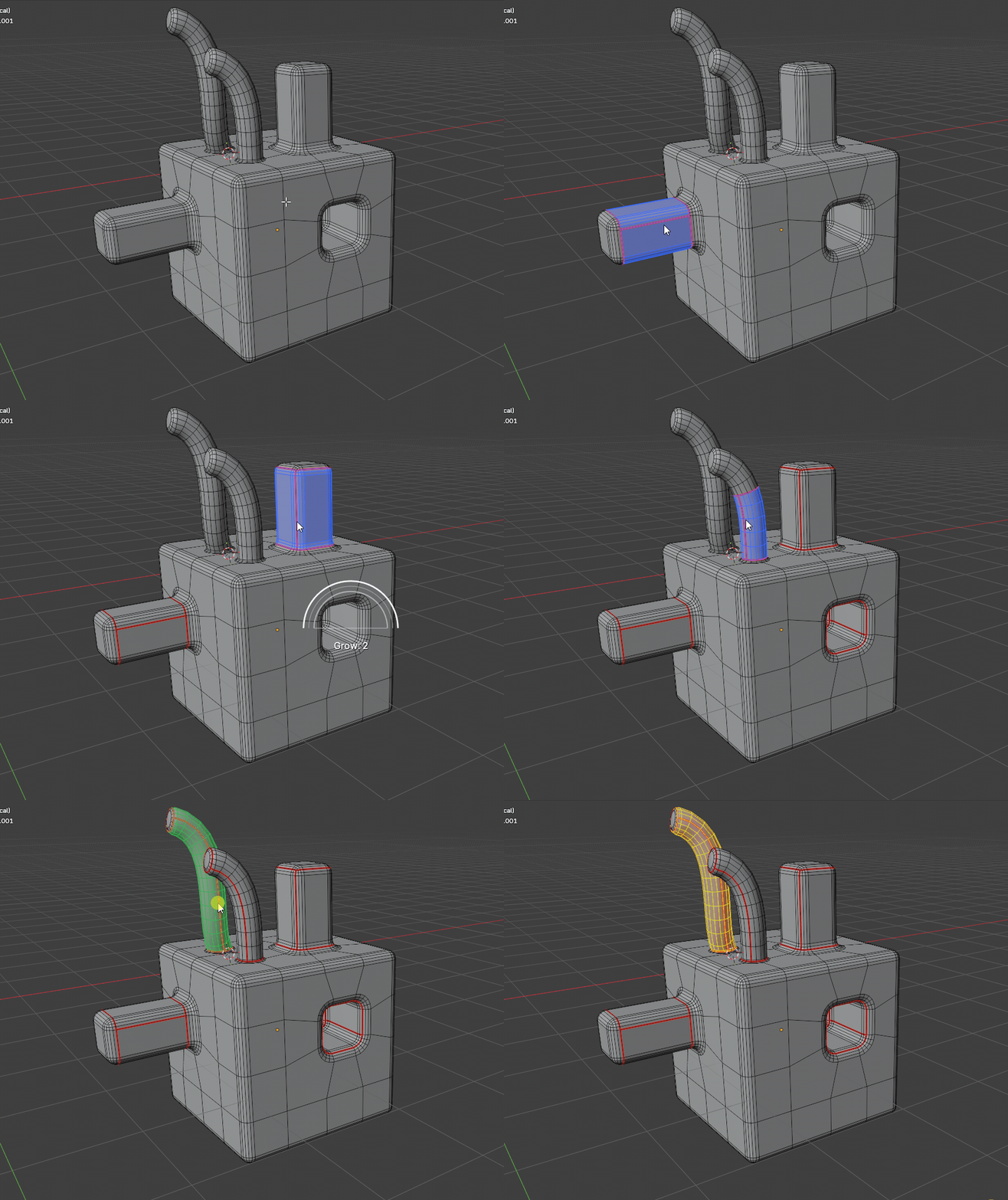
What it does
- Starts from a hovered or selected edge on tube-like quad geometry.
- Grows the cut along the tube direction.
- Selects the matching edge ring and surrounding face strip.
- Marks the strip edges, seed edge, and boundary loop as seams.
- Supports modal hover preview before the result is committed.
- Can use manual Grow or Auto Grow based on the bend angle of the tube.
Preview examples
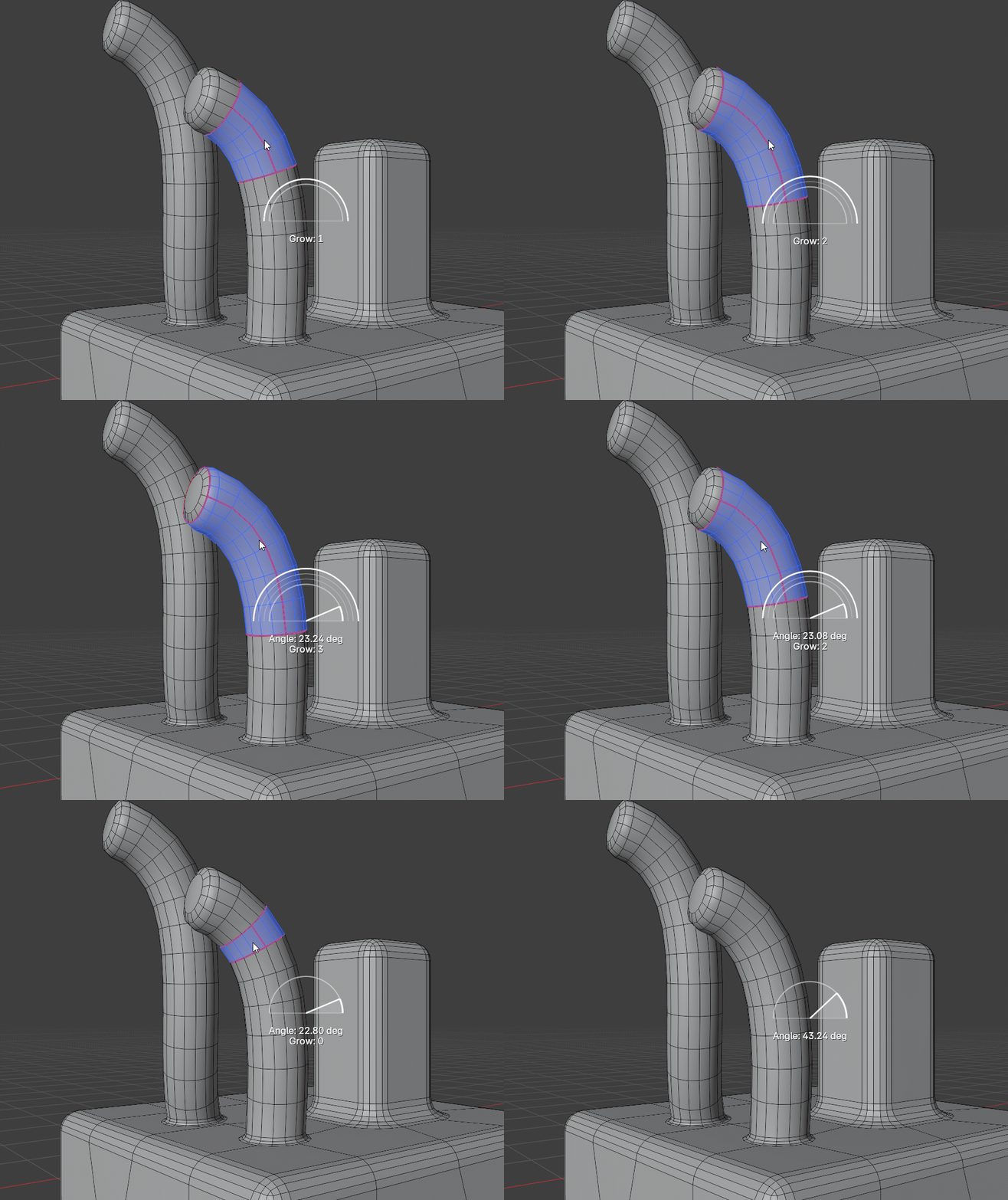
Grow the seam
Use Grow when the seam should travel a specific number of tube steps from the hovered edge. In this example, the preview extends farther along the tube while the seam strip and boundary loop update before anything is committed.
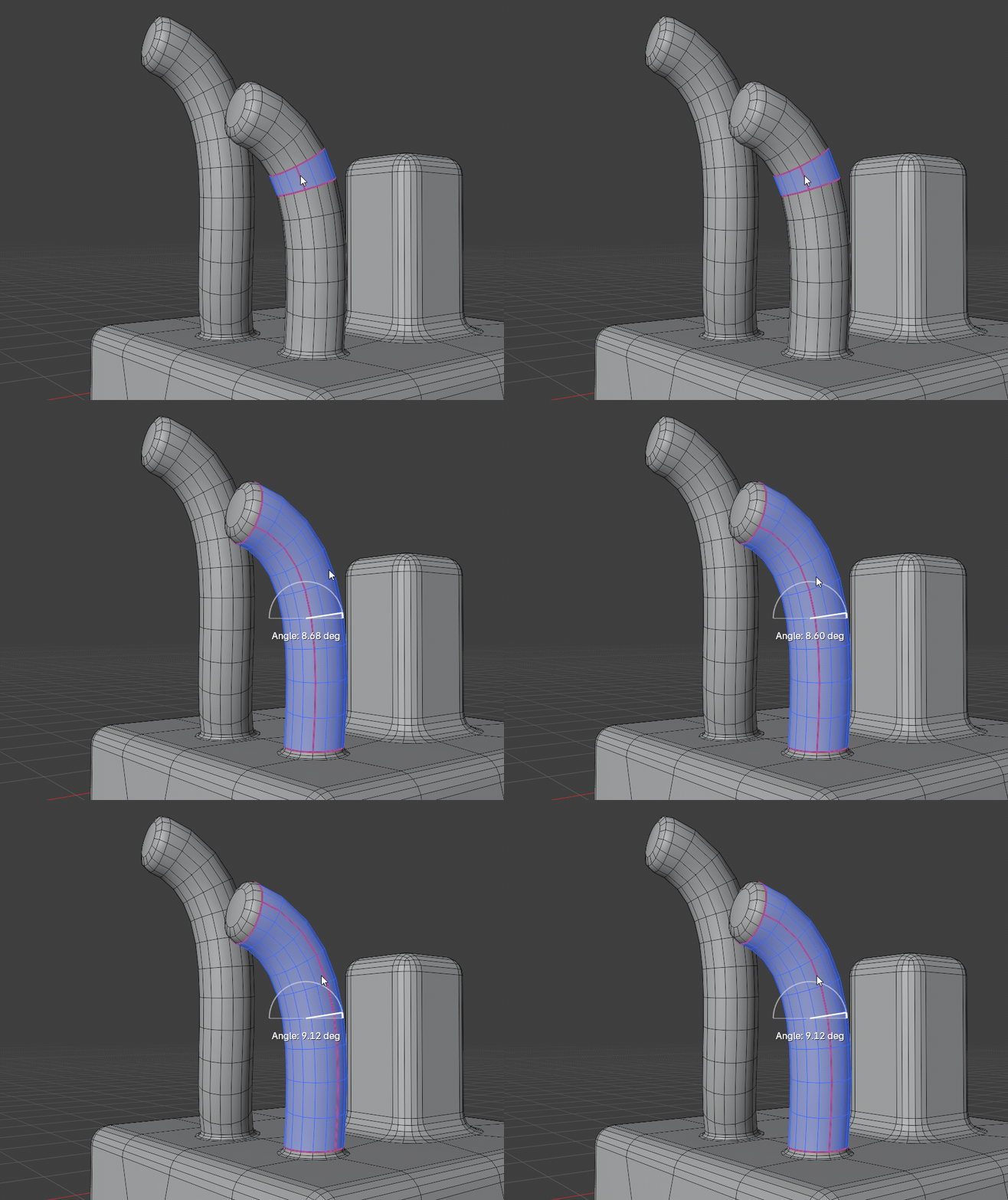
Use Auto Grow and set Angle
Auto Grow follows the tube until the next bend reaches the Angle limit. Toggle it when you want the preview to find a natural stopping point, then hold Shift and move the mouse left or right to tune how strongly the tube is allowed to bend before growth stops.
Where to find it
View3D > Sidebar > Easeam > UV Tools > Tube SeamView3D > Mesh Edit Mode > Alt + S > Tube Seam
Best use cases
Use Tube Seam on forms that are mostly clean quad tubes:
- hoses and cables
- pipes and railings
- cylindrical handles
- sleeves, rings, and bevelled tubes
- hard-surface parts that need a lengthwise cut plus cap boundaries
The operator expects clean topology. It works best when the tube is quad-based and the vertices along the grow path have four connected edges.
Controls
| Control | Result |
|---|---|
| Hover edge | Preview the tube seam cut. |
Left click, Enter, Numpad Enter, Space | Apply the current preview and continue the tool. |
Hold Ctrl while applying | Use Live Unwrap when the modal Live Unwrap preference is disabled, or bypass it when the preference is enabled. |
A | Toggle Auto Grow. |
Shift + scroll wheel | Increase or decrease manual Grow. |
Hold Shift + move mouse left/right | Adjust Auto Grow angle. |
Middle mouse or Alt navigation | Pass through to viewport navigation. |
Esc, right click, or exit shortcut from Easeam modal preferences | Cancel the tool and restore the pre-preview state. |
Settings
Grow
Controls how many tube steps are added from the seed edge before the ring and boundary are marked. This is the predictable option when you know exactly how far the seam should travel.
Default: 0
Maximum: 32
While adjusting Grow in modal mode, Easeam shows a Grow overlay near the cursor so you can confirm the current value while watching the preview.
Auto Grow
Keeps growing along the tube until the next bend reaches the configured Angle. This is useful when the tube has a clear bend or end condition and you want Easeam to stop before the shape changes direction too much.
Default: Off
When Auto Grow is toggled in modal mode, the preview updates immediately so you can compare the automatic result against the manual Grow distance.
Angle
Only active when Auto Grow is enabled. Lower values stop earlier on subtle bends. Higher values allow the seam to continue across stronger bends.
Default: 30 deg
While adjusting Angle in modal mode, Easeam shows an Angle overlay near the cursor so you can read the current threshold without opening a separate panel.
Tube Seam uses the shared Unwrap mode setting.
Tips
- Start from an edge that belongs to the tube strip you want to cut.
- Use manual Grow for precise short cuts and Auto Grow for longer tube sections.
- Toggle Auto Grow when the tube has a visible bend or end condition, then adjust Angle until the preview stops at the intended place.
- If preview does not travel as expected, inspect the topology around the hovered edge; non-quad or branching areas can stop growth.
- Use Tube Seam (Selection) if the seed edges are already selected.