Seam Edge Loop
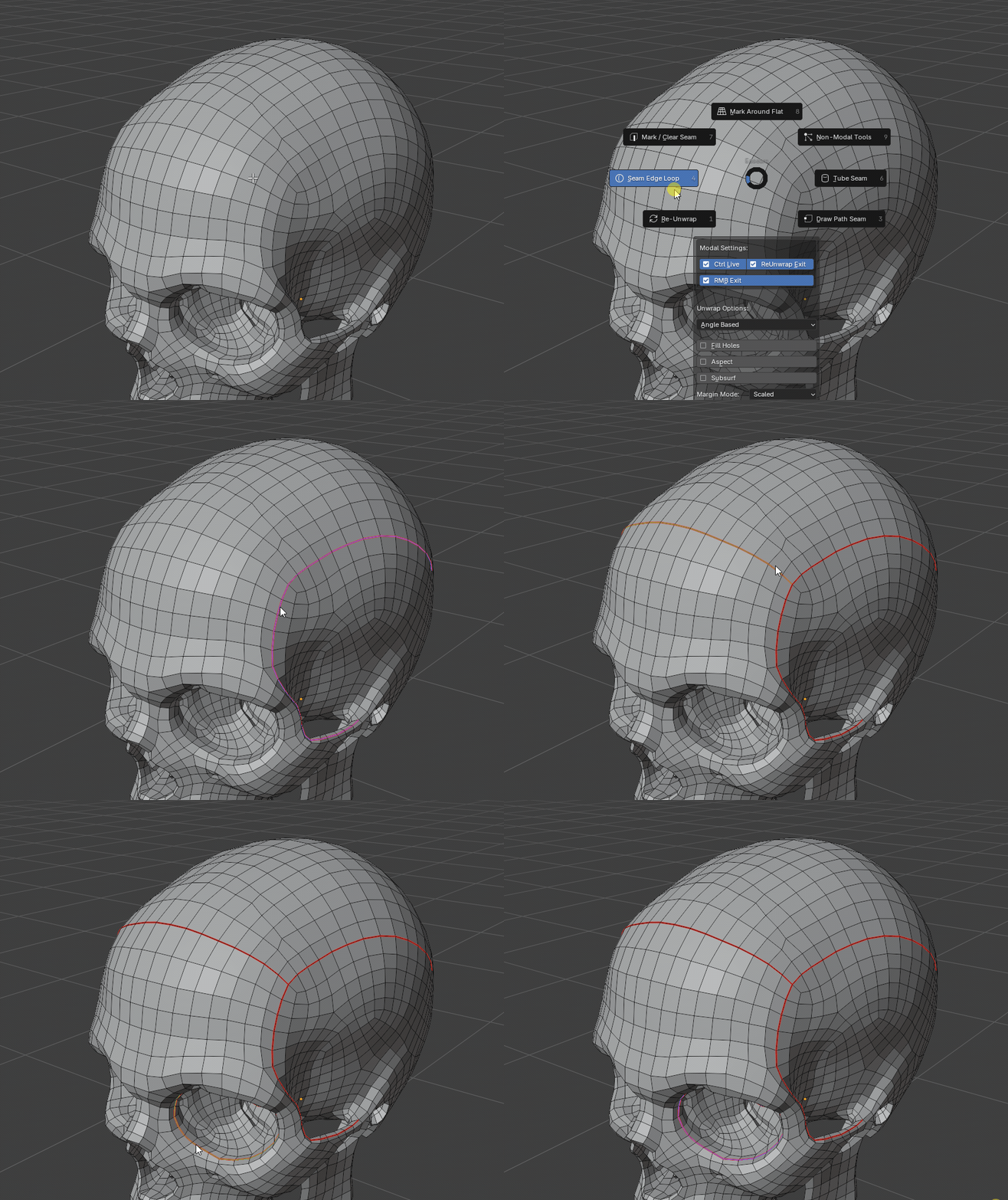
Seam Edge Loop is the fast path for turning a single hovered edge into a clean seam loop. Hover an edge, check the live preview, then apply the loop while Easeam stops the selection at any seams that already exist.
What it does
- Starts from a hovered or selected edge.
- Automatically previews the connected loop from that seed.
- Uses existing seams as loop boundaries, so the preview will not travel across seam borders.
- Marks the previewed loop as a seam when applied.
- Supports multi-object edit sessions.
Preview examples
Mark a loop from hover
Use Seam Edge Loop when the loop direction is already defined by the mesh topology. In this example, the hovered edge expands into the loop preview before the seam is committed.
Stop at existing seams
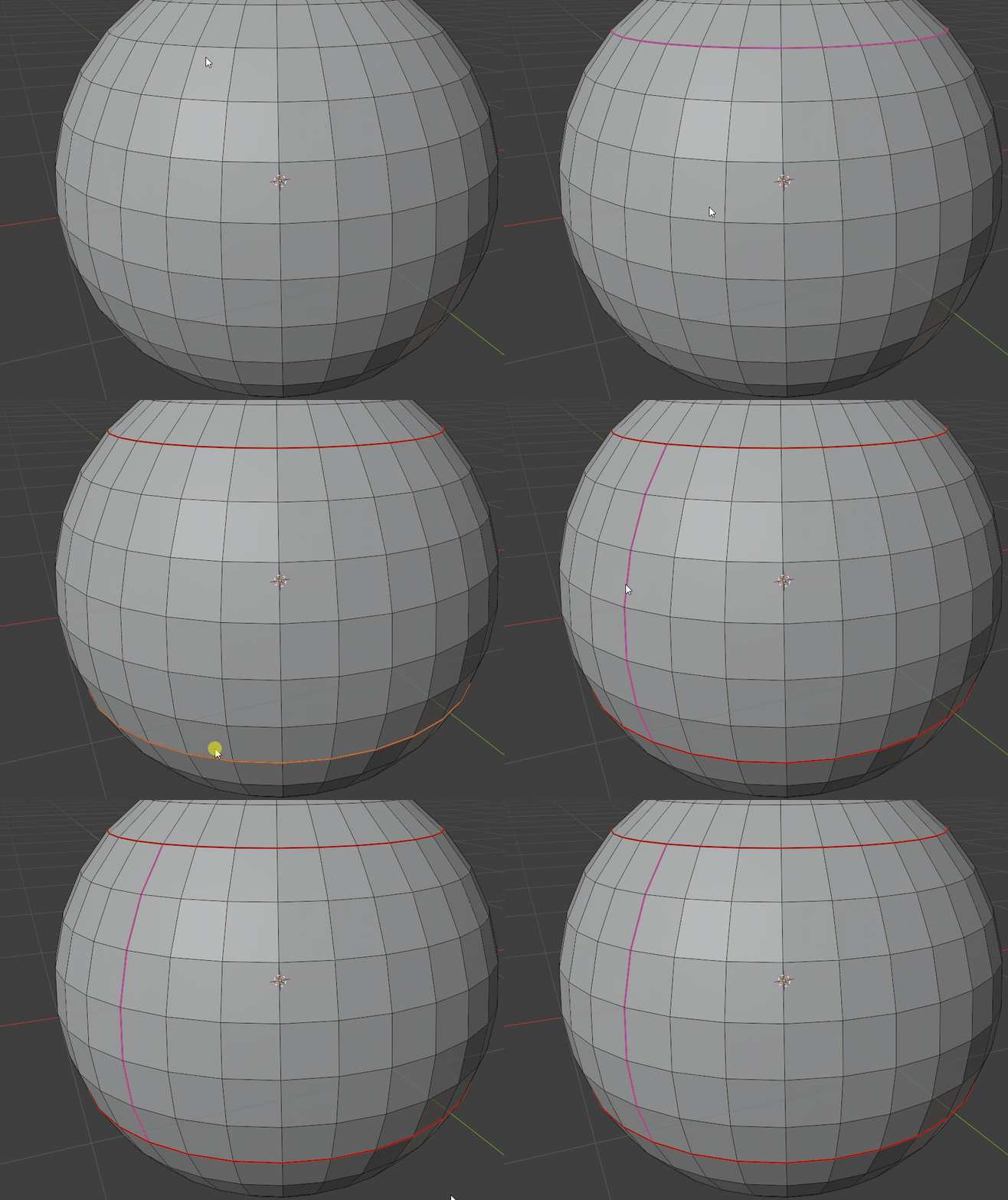
Existing seams act as hard limits. The preview follows the edge loop only through the available uncut area, making it useful when you are building UV islands one boundary at a time.
Where to find it
View3D > Sidebar > Easeam > UV Tools > Seam Edge LoopView3D > Mesh Edit Mode > Alt + S > Seam Edge Loop
Best use cases
Use Seam Edge Loop when a standard edge loop is the seam you want:
- defining UV island borders on quad-based hard-surface meshes
- adding loop cuts around cylinders, panels, sockets, and bevelled forms
- finishing island boundaries after other seams are already marked
- quickly repeating the same loop-marking action across multiple mesh objects
The operator follows Blender's edge-loop selection behavior, so it works best on predictable topology. Existing seams are useful guide rails: mark the boundaries you want to preserve first, then use Seam Edge Loop inside those areas.
Modal workflow
- Select a mesh object and enter Edit Mode.
- Open
Seam Edge Loopfrom the Easeam panel or pie menu. - Hover an edge to preview the loop that will be marked.
- Check that the preview stops at any existing seam boundary you want to preserve.
- Left click,
Enter,Numpad Enter, orSpaceto apply and keep using the tool. - Move to another edge and repeat, or exit the modal tool.
Controls
| Control | Result |
|---|---|
| Hover edge | Preview the seam loop. |
Left click, Enter, Numpad Enter, Space | Apply the current preview and continue the tool. |
Hold Ctrl while applying | Use Live Unwrap when the modal Live Unwrap preference is disabled, or bypass it when the preference is enabled. |
Esc, right click, or exit shortcut from Easeam modal preferences | Cancel the tool and restore the pre-preview state. |
Seam Edge Loop uses the shared Unwrap mode setting.
Tips
- Use this on clean loops where Blender can infer the edge-loop path from topology.
- Mark blocking seams first when you want the loop preview to stop at a specific island boundary.
- If the preview jumps in an unexpected direction, try another edge on the same loop or inspect the surrounding topology.