Mark Around Flat
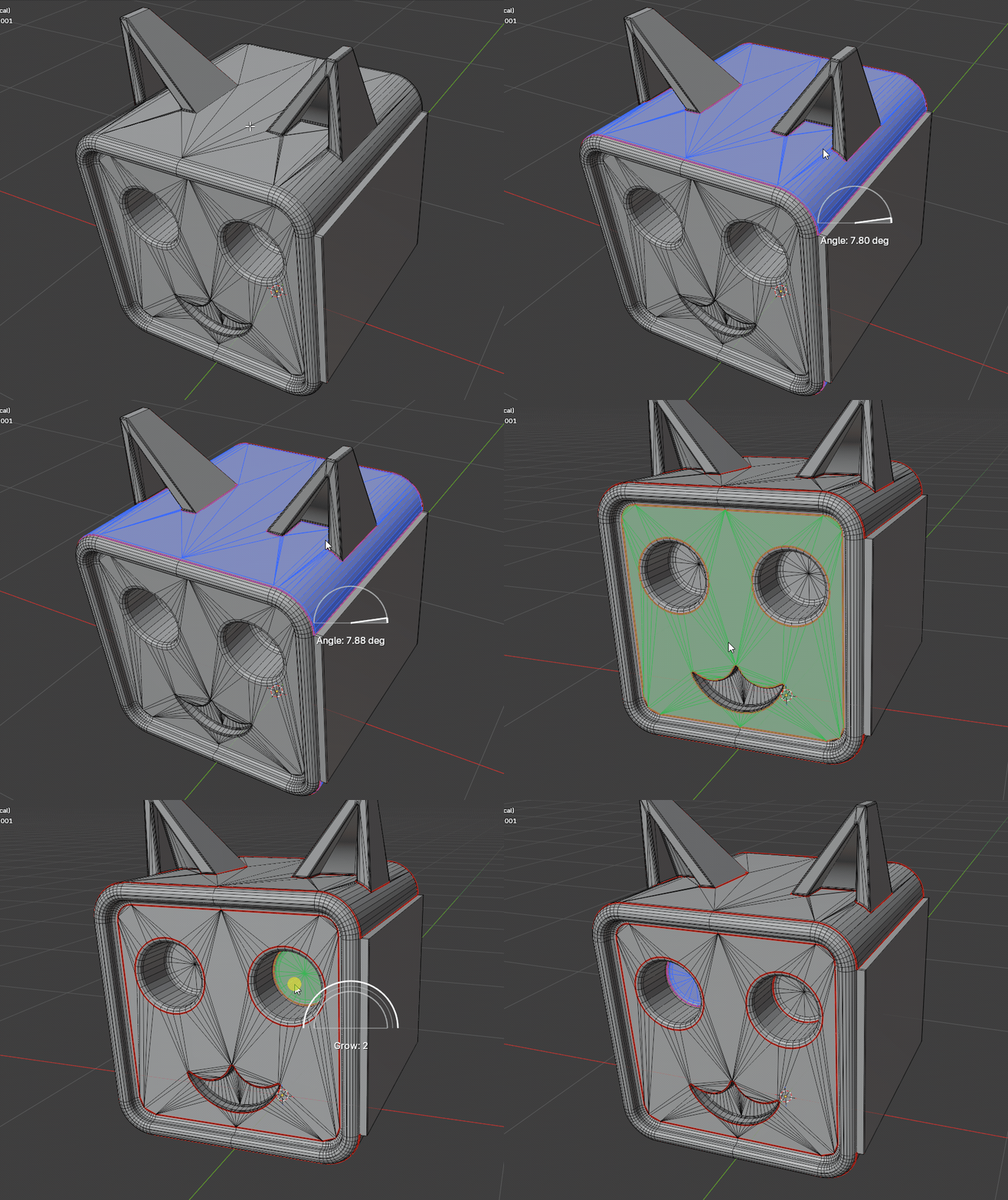
Mark Around Flat is made for the moment when a face region is visually obvious, but manually selecting its boundary would be boring. Hover a face, let Easeam detect the connected flat area, tune the preview, then commit the seam around that region.
What it does
- Detects a linked flat surface from a selected or hovered face.
- Marks the boundary edge loop around that surface as a seam.
- Stops at existing seams, so it will not bleed across UV island borders that are already marked.
- Supports multi-object edit sessions.
- Keeps a live modal preview before you apply the result.
- Shows quick overlays for Angle and Grow while you adjust the preview.
Preview examples
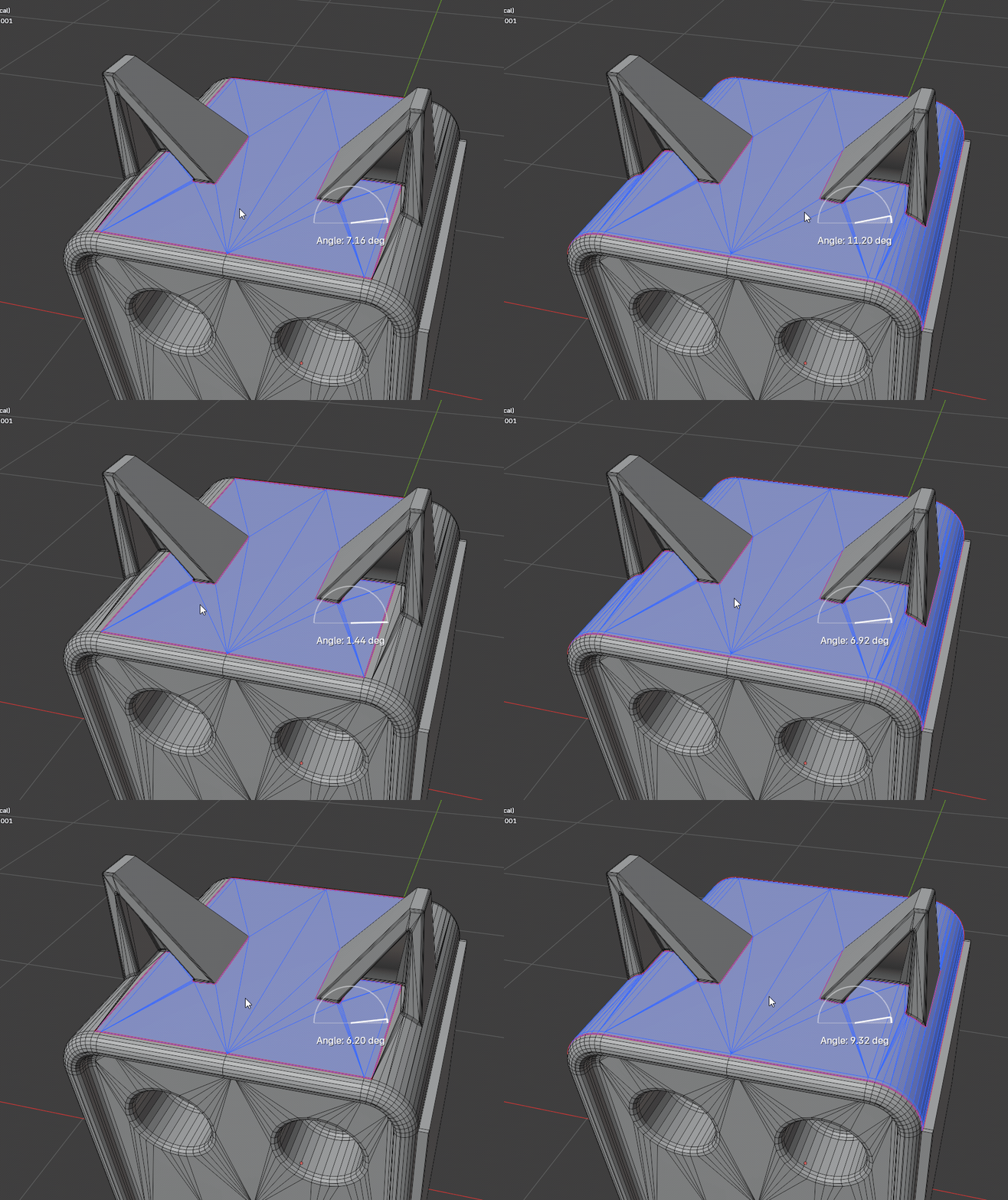
Adjust Angle
Use Angle when the preview needs to understand a wider or stricter flat region. In this example, the blue preview grows across the top panel while the pink seam outline updates around the detected surface.
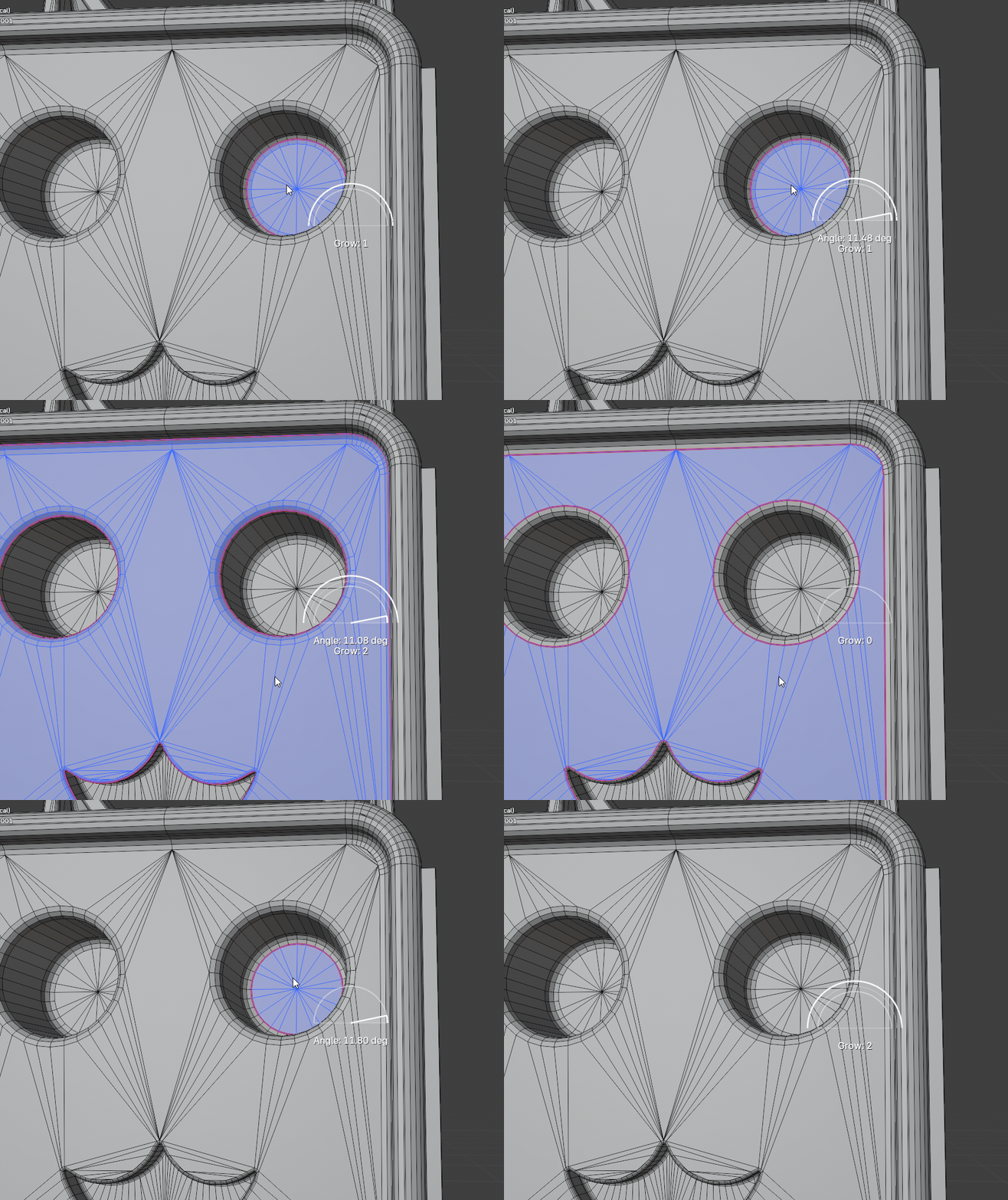
Grow the region
Use Grow when the flat selection is correct but needs to expand outward from the hovered face. This is useful around holes, caps, and inset details where the first preview starts too tightly.
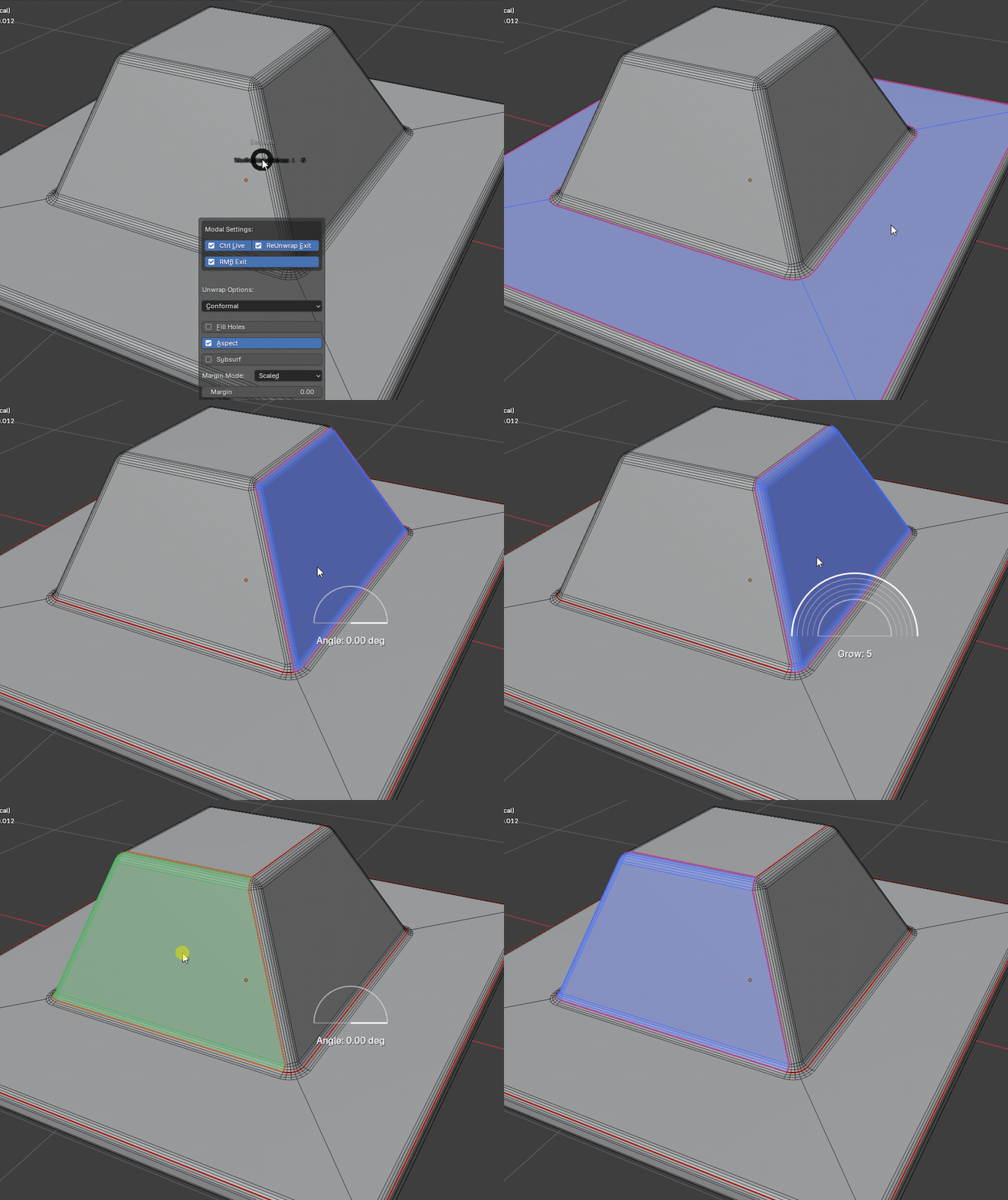
Respect existing seams
Existing seams act as hard boundaries. The preview can expand across the available flat surface, but it will not cross into another seam island that is already defined.
Where to find it
View3D > Sidebar > Easeam > UV Tools > Mark Around FlatView3D > Mesh Edit Mode > Alt + S > Mark Around Flat
Best use cases
Use it on flat or nearly flat parts of a mesh where you want an island boundary created quickly:
- panel faces on hard-surface objects
- planar bevel sections
- inset areas
- caps and flat details
- regions that should become their own UV island without hand-picking every border edge
Controls
| Control | Result |
|---|---|
| Hover face | Preview the flat region and boundary seam. |
Left click, Enter, Numpad Enter, Space | Apply the current preview and continue the tool. |
Hold Ctrl while applying | Use Live Unwrap when the modal Live Unwrap preference is disabled, or bypass it when the preference is enabled. |
Hold Shift + move mouse left/right | Adjust the flatness angle. |
Shift + scroll wheel | Increase or decrease Grow. |
Esc, right click, or exit shortcut from Easeam modal preferences | Cancel the tool and restore the pre-preview state. |
Mark Around Flat uses the shared Unwrap mode setting.
Tips
- Mark important UV island borders first when you do not want the seam preview to bleed into nearby areas; Mark Around Flat treats existing seams as manual boundaries.
- Start with a low Angle for hard-surface panels, then raise it only when the preview misses faces you want.
- Use Grow for controlled expansion around holes, caps, and inset details.
- Use Around Flat (Selection) if the modal preview feels slow.