Draw Path Seam
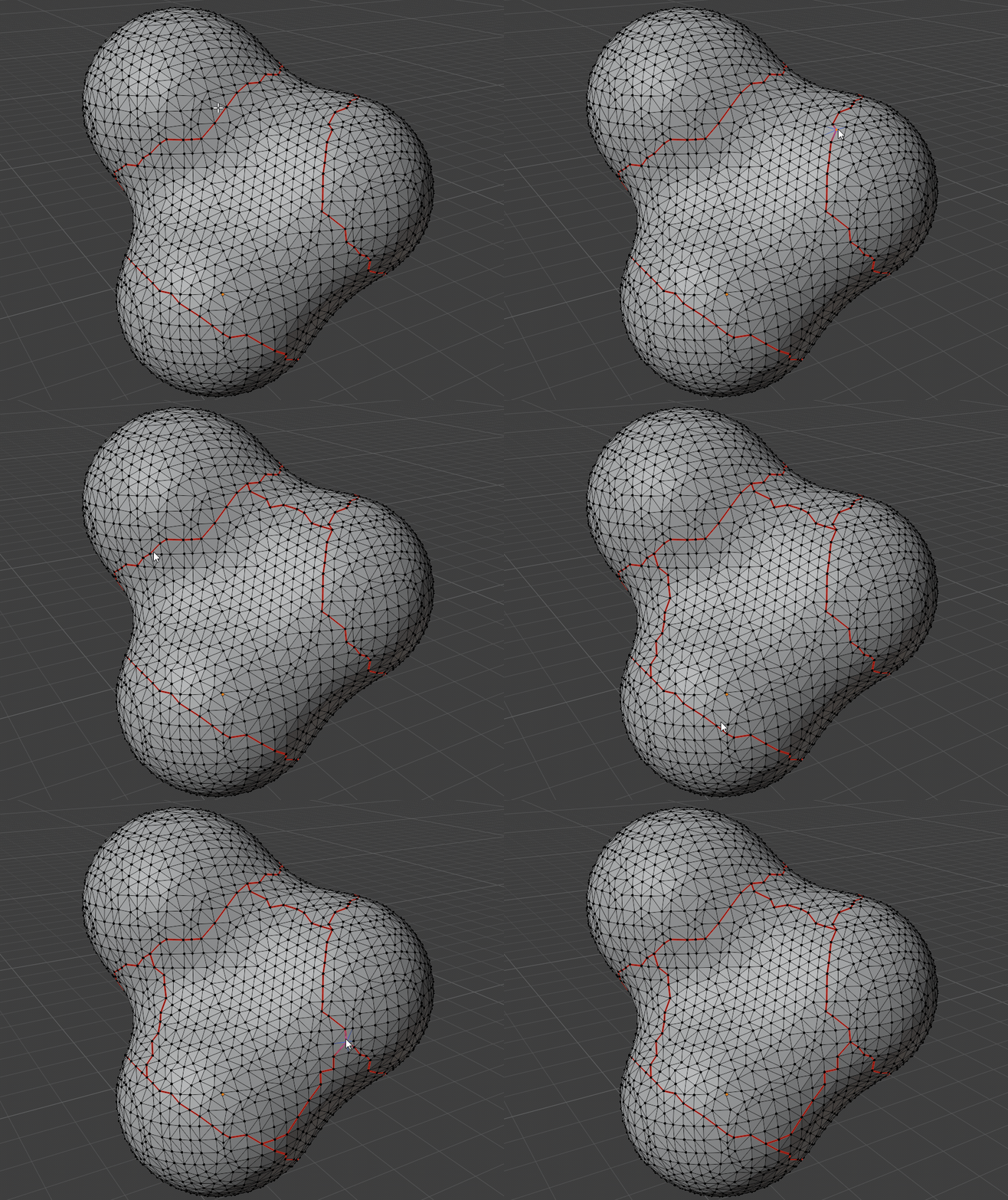
Draw Path Seam is for placing seam cuts by connecting vertices. Start the modal tool, left click the first vertex, hover another vertex to preview the shortest edge path, then apply the path when the preview follows the route you want.
What it does
- Starts from a vertex chosen during the modal session.
- Finds the shortest connected edge path from the first vertex to the hovered vertex.
- Marks the previewed path as a seam when applied.
- Keeps the modal tool running after each apply, using the last clicked vertex as the next start vertex.
- Lets you clear the current start vertex by pressing
Aand begin a new path without leaving the tool. - Supports multi-object edit sessions, with each path drawn on one mesh object at a time.
Preview examples
Draw a shortest path
Use Draw Path Seam when the seam needs to connect two specific vertices. In this example, the hovered vertex previews the shortest connected edge path before the seam is committed.
Where to find it
View3D > Sidebar > Easeam > UV Tools > Draw Path SeamView3D > Mesh Edit Mode > Alt + S > Draw Path Seam
Best use cases
Use Draw Path Seam when you know two points the seam should connect but do not want to manually select every edge between them:
- drawing long custom seam cuts across a mesh
- connecting existing seam boundaries
- seaming non-quad based topology where edge loops are not reliable
- placing seams on organic or uneven topology where loop selection is not the right shape
- walking a seam path in several connected segments
- quickly restarting from a new first vertex while staying inside one modal session
The path follows mesh edges and uses edge length to choose the shortest available route. If the preview takes an unexpected route, set a closer intermediate vertex and build the seam in smaller segments.
Modal workflow
- Select a mesh object and enter Edit Mode.
- Open
Draw Path Seamfrom the Easeam panel or pie menu. - Left click the first vertex.
- Hover another vertex to preview the shortest path.
- Left click,
Enter,Numpad Enter, orSpaceto apply the current path. - Continue from the last clicked vertex, or press
Ato clear it and choose a new first vertex. - Exit the modal tool when you are done.
Controls
| Control | Result |
|---|---|
| Left click with no first vertex | Set the first vertex. |
| Hover vertex after first vertex is set | Preview the shortest seam path. |
Left click with a preview, Enter, Numpad Enter, Space | Apply the current preview and continue from the target vertex. |
A | Clear the current first vertex so you can start a new path. |
Hold Ctrl while applying | Use Live Unwrap when the modal Live Unwrap preference is disabled, or bypass it when the preference is enabled. |
Middle mouse or Alt navigation | Pass through to viewport navigation. |
Esc, right click, or exit shortcut from Easeam modal preferences | Cancel the tool and restore the pre-preview state. |
Draw Path Seam uses the shared Unwrap mode setting.
Tips
- Use
Awhen you want to start a separate seam path without exiting the modal tool. - Add seams in shorter segments if the shortest path chooses a route across the wrong side of the mesh.
- If no preview appears, make sure the hovered vertex is connected to the first vertex on the same mesh object.