Re-Unwrap
Re-Unwrap is the refresh button for UVs after your seam layout changes. It runs Blender's unwrap with Easeam's saved unwrap settings, can include hidden geometry when needed, and restores your original mesh selection after the operation.
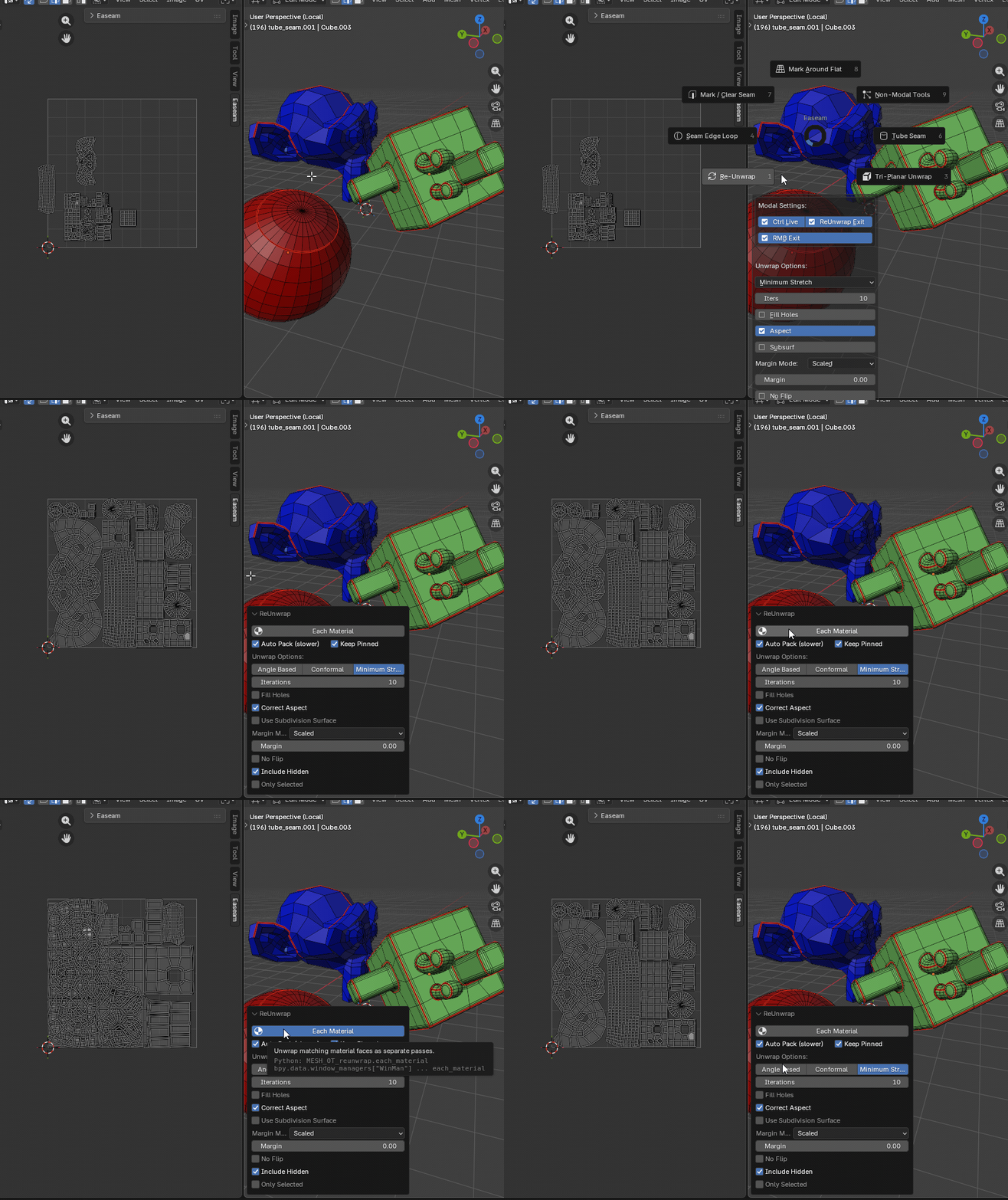
What it does
- Re-unwraps the current editing mesh object.
- Can unwrap the whole mesh or only the current selection.
- Can reveal and include hidden geometry during the unwrap pass.
- Can unwrap each material as a separate pass.
- Can auto-pack UV islands after unwrapping.
- Can keep pinned UV islands in place while packing.
- Restores the original object and mesh selection after it finishes.
Where to find it
View3D > Sidebar > Easeam > UV Tools > Re-UnwrapView3D > Mesh Edit Mode > Alt + S > Re-Unwrap
Best use cases
Use Re-Unwrap when the seams are already placed and you want the UV layout regenerated without redoing the setup work:
- refreshing UVs after adding, removing, or moving seams
- testing a different unwrap method or margin setting
- reprocessing all selected objects in one pass
- separating unwrap passes by material before packing
Re-Unwrap uses Blender's unwrap operator under the hood. Apply object scale first when accurate UV proportions matter. Dense models without a proper seam layout can unwrap slowly because Blender has to solve a larger, less constrained UV problem.
Workflow
- Select one or more mesh objects.
- Enter Edit Mode if you want to preserve or limit the active component selection.
- Adjust Easeam's unwrap settings if needed.
- Run
Re-Unwrap. - Tune the operator options in the redo panel.
If no objects are selected, the operator cancels and reports No objects selected.
Settings
Each Material
Runs the unwrap once per material used by the selected mesh objects. Faces with the same material are selected and unwrapped together, then Easeam moves to the next material.
Use this when material regions should stay grouped during unwrap instead of being solved as one combined mesh selection.
Auto Pack
Packs UV islands after the unwrap pass using Easeam's configured margin. This is slower than a plain unwrap, but it gives a cleaner final layout when you want an immediate packed result.
Default: off
Keep Pinned
Preserves pinned UV islands while packing. This affects the packing step, so it matters when Auto Pack is enabled.
Include Hidden
Reveals hidden mesh elements during the unwrap pass so they are included in the refreshed UV layout.
Default: enabled
Only Selected
Limits the unwrap to the current selected geometry. When this is off, Re-Unwrap selects the full mesh for the unwrap pass and then restores your original selection.
Default: off
Unwrap Settings
Re-Unwrap uses the shared Easeam unwrap settings shown in its redo panel:
| Setting | Behavior |
|---|---|
Method | Chooses Blender's unwrap method, such as Angle Based or Conformal. |
Iterations | Sets solver iterations when Method is Minimum Stretch. |
Fill Holes | Virtually fills holes before unwrapping, which can help avoid overlaps and preserve symmetry. |
Correct Aspect | Uses image aspect ratio when calculating UVs. |
Use Subdivision Surface | Uses positions from the evaluated subdivision surface modifier when calculating UVs. |
Margin Method | Controls how Blender interprets the unwrap margin. |
Margin | Sets spacing between UV islands during unwrap and packing. |
No Flip | Prevents UV flips, which can reduce distortion when pins are involved. |
Use Weights | Enables vertex group weights for weighted parameterization. |
Weight Group | Selects the vertex group used when Use Weights is enabled. |
Weight Factor | Controls how strongly the weight group influences the unwrap. |
Tips
- Use
Only Selectedfor targeted fixes after editing a small part of the seam layout. - Leave
Include Hiddenenabled when hidden faces should stay consistent with the visible UV layout. - Use
Each Materialwhen material boundaries are meaningful UV groups. - Keep
Auto Packdisabled while testing seam changes to speed up Re-Unwrap; enable it only for the final packed result. - Pin important UV islands before packing, then keep
Keep Pinnedenabled.