Mark / Clear Seam
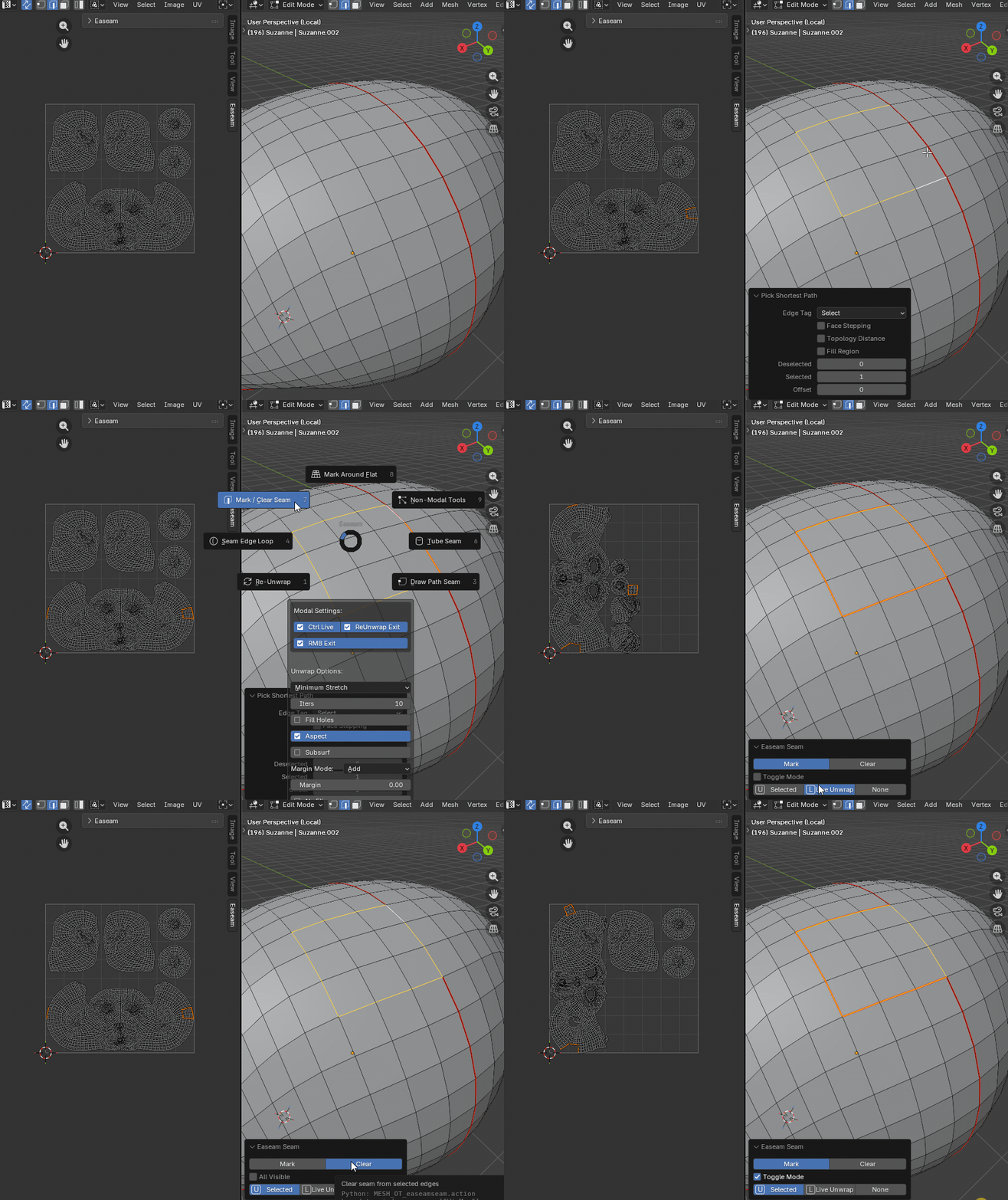
Mark / Clear Seam is just Blender's regular mark and clear seam workflow, with additional options added by Easeam. Use it when you already know which edges should become UV cuts and want a fast way to mark, clear, toggle, or unwrap from that selection.
What it does
- Marks selected mesh edges as seams.
- Clears seams from selected mesh edges.
- Can toggle selected edges, clearing edges that are already seams while marking the rest.
- Can clear every visible seam in the mesh.
- Can unwrap the selected seam island or use Blender Live Unwrap after marking.
Where to find it
View3D > Sidebar > Easeam > UV Tools > Mark / Clear SeamView3D > Mesh Edit Mode > Alt + S > Mark / Clear Seam
Best use cases
Use Mark / Clear Seam for direct manual seam editing:
- general seam marking and clearing
- quickly flipping a mixed seam selection with Toggle Mode
- clearing all visible seams
Redo panel options
| Item | When shown | Behavior |
|---|---|---|
Toggle Mode | When Action is set to Mark | Swaps seam marks on the selected edges: selected edges that are already seams are cleared, and selected edges that are not seams are marked. |
All Visible | When Action is set to Clear | Clears seams from all visible mesh elements, then deselects the mesh. Leave this off when you only want to clear the current selection. |
Mark / Clear Seam uses the shared Unwrap mode setting.
Tips
- Use
Toggle Modewhen a selection contains both seam and non-seam edges to swap seam marks. - Use
All Visibleto quickly clear seams on visible geometry.